Format conversion
Choose one output format for the batch or override individual images.
 BulkMediaConvertPrivate image workspace
Private image conversion and compression
Make a whole folder lighter.
Convert, resize, and compress up to 100 PNG, JPG, WebP, or AVIF images in one batch. Choose an output format and quality, then download individual files or a ZIP. Processing happens in your browser; your images are not uploaded.
Output
WebP · lighter
Drop up to 100 images here
PNG, JPG, JPEG, WebP, AVIF, and HEIC
Everything stays in your browser
Live status
Drop files above to start the local workflow.
No files processed yet
Configure
How it works
Ready when you are
100
images / batch
Enough room for a product folder, campaign set, or photo export.
5
workers active
Parallel browser workers process queued files without a server.
0
uploads
Your original files stay on your device from selection to download.
Choose one output format for the batch or override individual images.
Adjust quality when re-encoding JPG, WebP, and AVIF images.
Scale queued images to 25%, 50%, 75%, or 100%.
Optionally remove metadata when images are re-encoded.
Conversion runs in your browser; image files are not uploaded.
Download completed images individually or together as a ZIP.
Difference preview
Drag the handle across this sample image to compare the original with a WebP export. Adjust quality and scale to see how they affect the estimated output size.
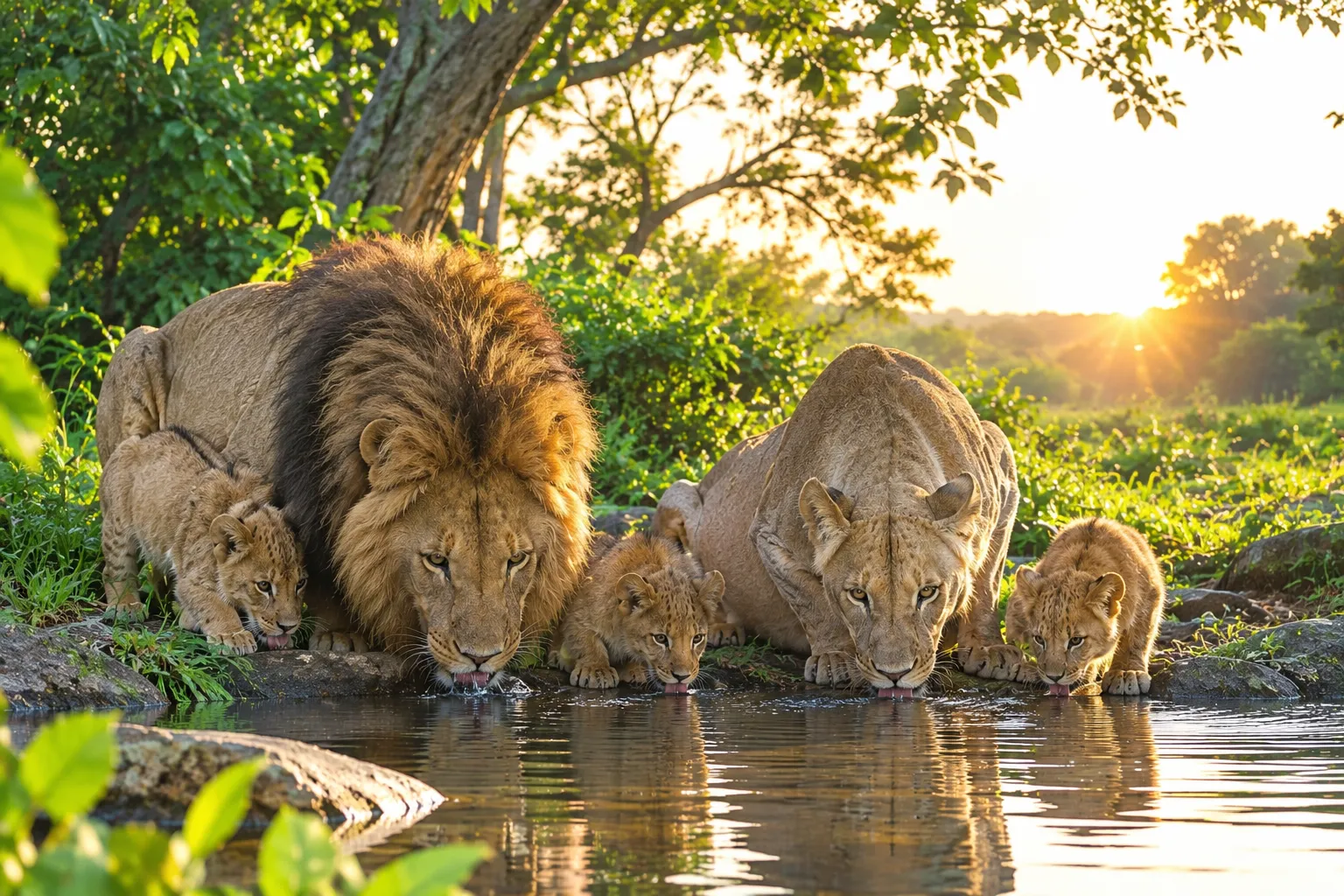
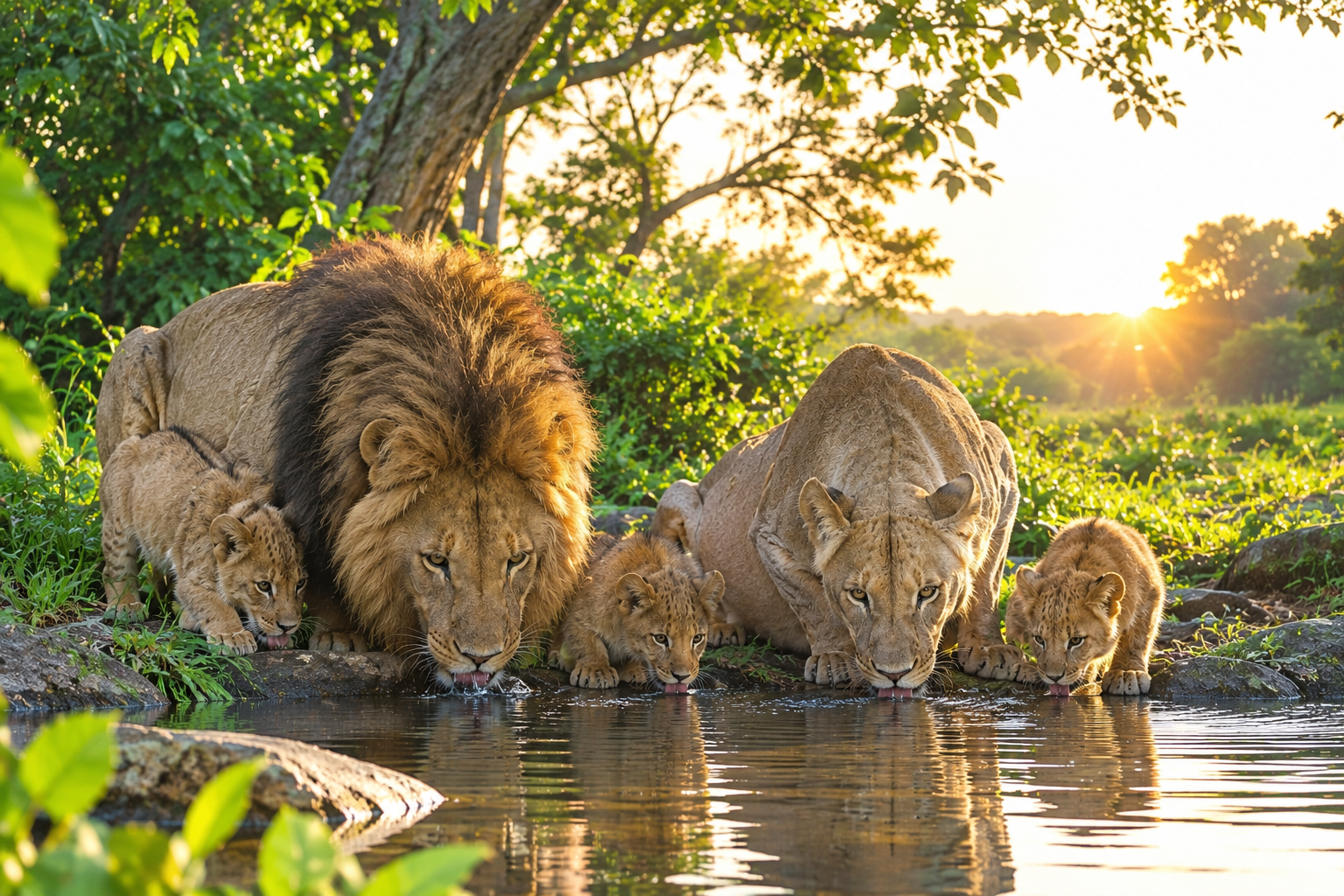
Sample 01
A simple visual identity keeps the comparison honest: same image, different output settings.
Why use BulkMediaConvert?
Many online image compressors send files to a remote server and limit you to small, one-off jobs. BulkMediaConvert keeps the work in your browser, gives you batch controls, and lets you inspect the result before you download it.
Images stay in your browser instead of being uploaded to a cloud conversion queue. That makes the workflow useful for private, client, and work files.
Add up to 100 images, apply shared format and quality settings, then review each result before downloading individual files or a ZIP.
Choose PNG, JPG, WebP, or AVIF output, resize to a percentage, adjust quality, and remove metadata during re-encoding.
Frequently asked questions
Answers about batch compression, WebP and AVIF conversion, resizing, quality, supported formats, and privacy.
No. BulkMediaConvert processes images in your browser using client-side WebAssembly. Your image files are not sent to a conversion server or stored by this tool.
You can add up to 100 images to one batch. The browser processes up to five images concurrently, so performance depends on your device, browser, image dimensions, and available memory.
You can add PNG, JPG, JPEG, WebP, AVIF, and HEIC files. Output options are the original format, PNG, JPG, WebP, or AVIF.
Yes. Choose WebP or AVIF as the global output format, or set a different format for an individual image, then select Process. PNG, JPG, JPEG, WebP, and AVIF inputs are supported; HEIC decoding is not currently available.
Yes. Set the batch scale to 25%, 50%, 75%, or 100%, adjust quality, and optionally remove metadata. These settings apply when you process the queued images.
Add up to 100 supported images, choose an output format and quality, then select Process. The browser processes the batch locally, and you can download finished images individually or as a ZIP.
No setting can guarantee a smaller file with no visual change for every image. Quality settings let you choose a trade-off; keep the originals and check exported images before replacing them.
It works in modern browsers that support WebAssembly. Large or high-resolution batches may need more memory, so smaller batches can be more comfortable on mobile devices.
HEIC files can be detected and added to the queue, but HEIC decoding is not included in the current browser build. HEIC items will show an error; use PNG, JPG, WebP, or AVIF for successful processing.